Ever watched a YouTube video and wished you could save it for offline viewing? That’s where a YouTube to MP4 converter comes in handy. Whether you want to download tutorials, music videos, or educational clips, MP4 is the most compatible format—usable on nearly every device.
In this guide, you’ll learn how to convert YouTube videos to MP4 safely, what tools to use, and how to avoid common pitfalls.
What Does “YouTube to MP4” Mean?
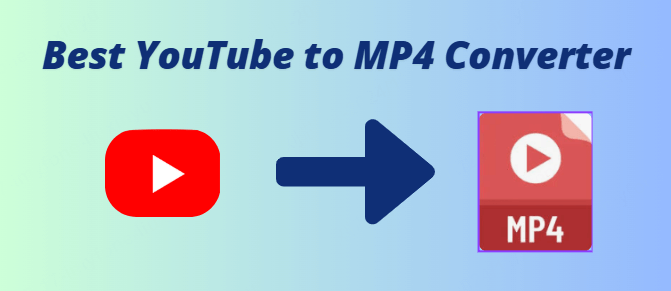
Converting YouTube to MP4 simply means downloading a YouTube video and saving it in MP4 format on your device. MP4 is popular for its small file size, great quality, and universal compatibility with all operating systems.
You can play MP4s on Android, iPhone, Windows, macOS, and even smart TVs without extra software.
Why People Convert YouTube Videos to MP4
There are many practical reasons for converting YouTube videos to MP4:
-
Offline access – Watch anytime without internet.
-
Learning convenience – Save tutorials, lectures, or language lessons.
-
Content backup – Keep copies of videos that may later be deleted.
-
Device portability – Transfer and share videos easily.
⚠️ Important: Downloading copyrighted videos without permission can violate YouTube’s terms of service. Use converters responsibly for personal or educational use only.
How to Convert YouTube to MP4 (Step-by-Step)
Follow these steps for a smooth conversion:
-
Copy the YouTube video URL.
Go to the desired video and copy its link. -
Open a trusted YouTube to MP4 converter.
Use a safe, ad-free site that doesn’t require software installation. -
Paste the URL.
Insert the copied link into the converter field. -
Select quality (720p, 1080p, or 4K).
Choose based on your device’s storage and screen resolution. -
Convert and download.
Click the “Convert” button and save the MP4 file when it’s ready.
Best Practices for Safe Conversion
To protect your device and privacy, always:
-
Use HTTPS-secured converter websites.
-
Avoid sites that ask for email or login info.
-
Don’t install unknown extensions or software.
-
Choose ad-free platforms.
-
Respect copyright laws and creator rights.
What Features Make a Good YouTube to MP4 Converter?
A reliable converter should offer:
-
HD and 4K support
-
Fast processing
-
No watermark or pop-up ads
-
Mobile-friendly interface
-
Batch downloads
-
File format options (MP3, AVI, MOV)
Pro Tips for Faster and Cleaner Conversions
-
Close extra tabs to speed up conversion.
-
Use a stable internet connection.
-
Pick 720p for a balance of quality and size.
-
Delete old MP4s to save storage.
-
Enable antivirus protection while downloading.
People Also Ask (FAQs)
1. Is it legal to convert YouTube videos to MP4?
It depends. Downloading royalty-free or self-owned content is legal, but downloading copyrighted videos without consent may violate YouTube’s rules.
2. Can I convert YouTube to MP4 on my phone?
Yes! Most modern converters work on both mobile and desktop browsers.
3. Does converting YouTube videos lower video quality?
Not always. You can select HD or 4K to retain video quality during conversion.
4. Which YouTube to MP4 converter is safest?
The safest converters use SSL encryption, don’t require sign-ups, and avoid intrusive ads.
5. Can I convert YouTube Shorts to MP4?
Absolutely. You can download YouTube Shorts just like any regular video.
Common Mistakes to Avoid
-
Clicking fake download buttons on shady sites.
-
Installing unverified converter software.
-
Ignoring copyright warnings.
-
Downloading low-resolution versions that appear blurry.
Final Thoughts
A YouTube to MP4 converter is a simple yet powerful tool that lets you enjoy your favorite videos offline. Just stay cautious, pick reliable converters, and respect copyright laws.
Whether you’re saving a tutorial for later or keeping a personal video archive, MP4 remains the best choice for quality, portability, and compatibility.
About the Author